Pods
What Pods does and how to get it
OpenApe Pods runs repeatable tasks on your Mac. Describe the task to connected Codex; Pods shows your automations on one map and gathers everything that needs your decision in one place. Each Pod keeps its own workspace, permissions, results and history. Verify a real run before relying on scheduled execution.
Availability — September 2026: Pods is an internal pilot, not a publicly released download. A Developer ID signed and Apple-notarized internal app exists, but public distribution is not approved. This guide provides no public download link or release date. If you have not been given an authorized internal build, you cannot complete installation from this page.
If you have received that build, open its DMG, copy OpenApe Pods into Applications and launch it. The app bundles its runtime; no separate Node.js or Codex installation is needed. Execution is currently restricted to Apple Silicon and Darwin 25.6.0 (verified on macOS 26.6.2). Other OS/CPU combinations display an error and block execution; the packaging minimum is not a promise of runtime support.
For a first task, use a small folder of non-sensitive sample files and read-only access. Keep automatic execution off until you have checked a manual result. All screenshots in this guide use isolated synthetic data. They illustrate the current interface, not a successful connection to your accounts.
Automations: map, list and detail
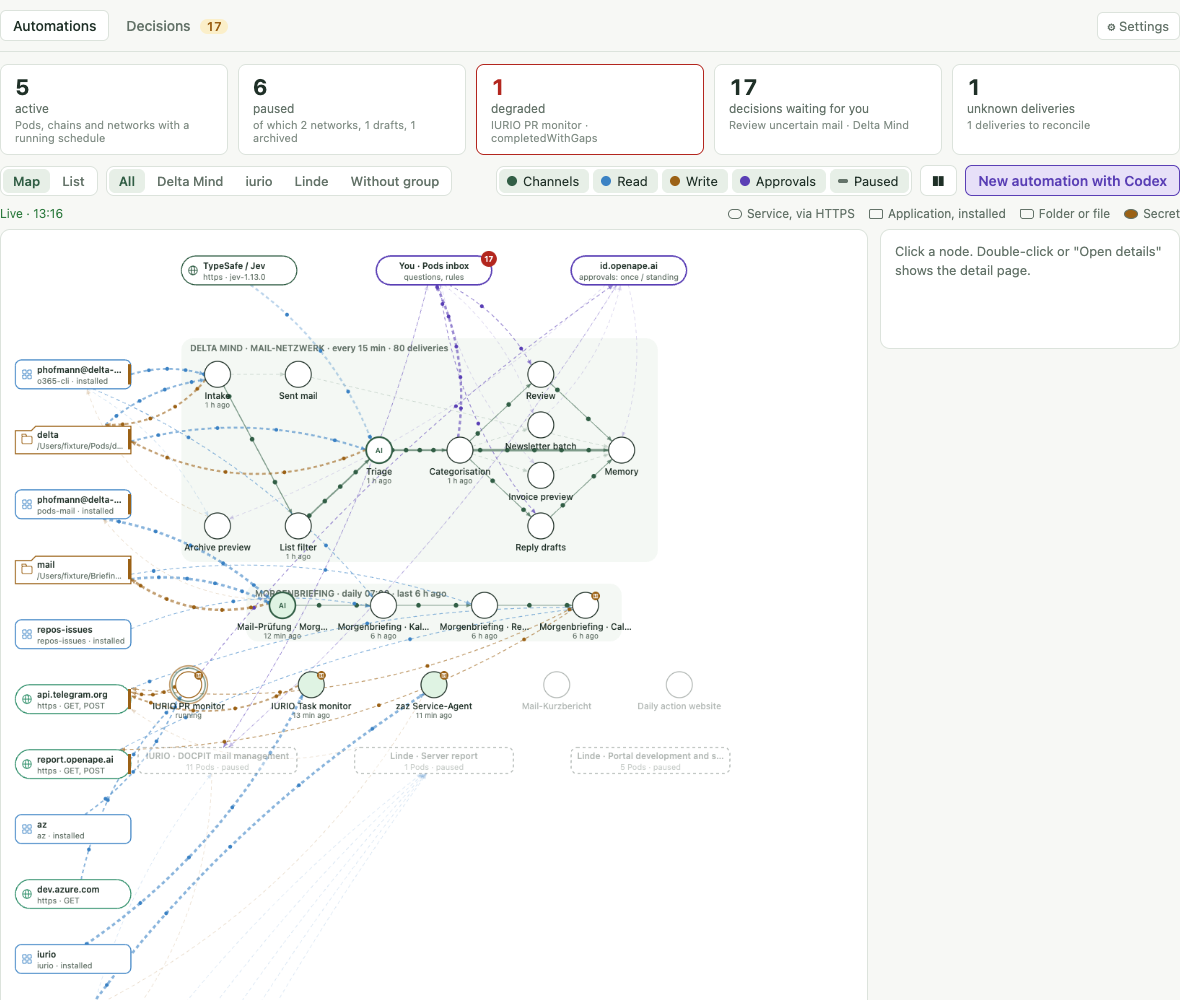
Automations is the landing tab. The five counters at the top are system counts: active, paused, degraded, decisions waiting for you and unknown deliveries. Their subtitles come from your data, for example the name of a degraded Pod and its reason.
The map shows your Pods in the middle, the services, applications and folders they read on the left, pure destinations on the right and the authorities above: your decisions, the identity provider and the AI. Dotted lines carry the recorded reads and writes of the last 24 hours; networks appear as groups with their members. List shows the same Pods as a table. Filter by group and hide layers with the chips Channels, Read, Write, Approvals and Paused.
Select a node to read its facts in the info panel. Open details opens the detail page with schedule, members, decision points, numbers, access by kind, secrets as aliases, channels, the developer section and the latest run. Pause, Resume and Run now are the owner commands on this page; nothing here writes to your accounts.
Stand HH:MM marks a published snapshot in the browser; Live · HH:MM means the desktop answers directly. The browser renders the same tab from the snapshot of the selected desktop. Native controls such as opening the script folder or choosing a private file stay on the desktop and are shown disabled in the browser.
- Open Pods; Automations is the landing page.
- Switch between Map and List, choose a group and toggle the layers.
- Select a Pod or network and choose Open details.
- Use Pause, Resume or Run now on the detail page. Details öffnen in the developer section opens the Pod editor for permissions, variables and secrets, history and identity.
Decisions: everything that waits for you
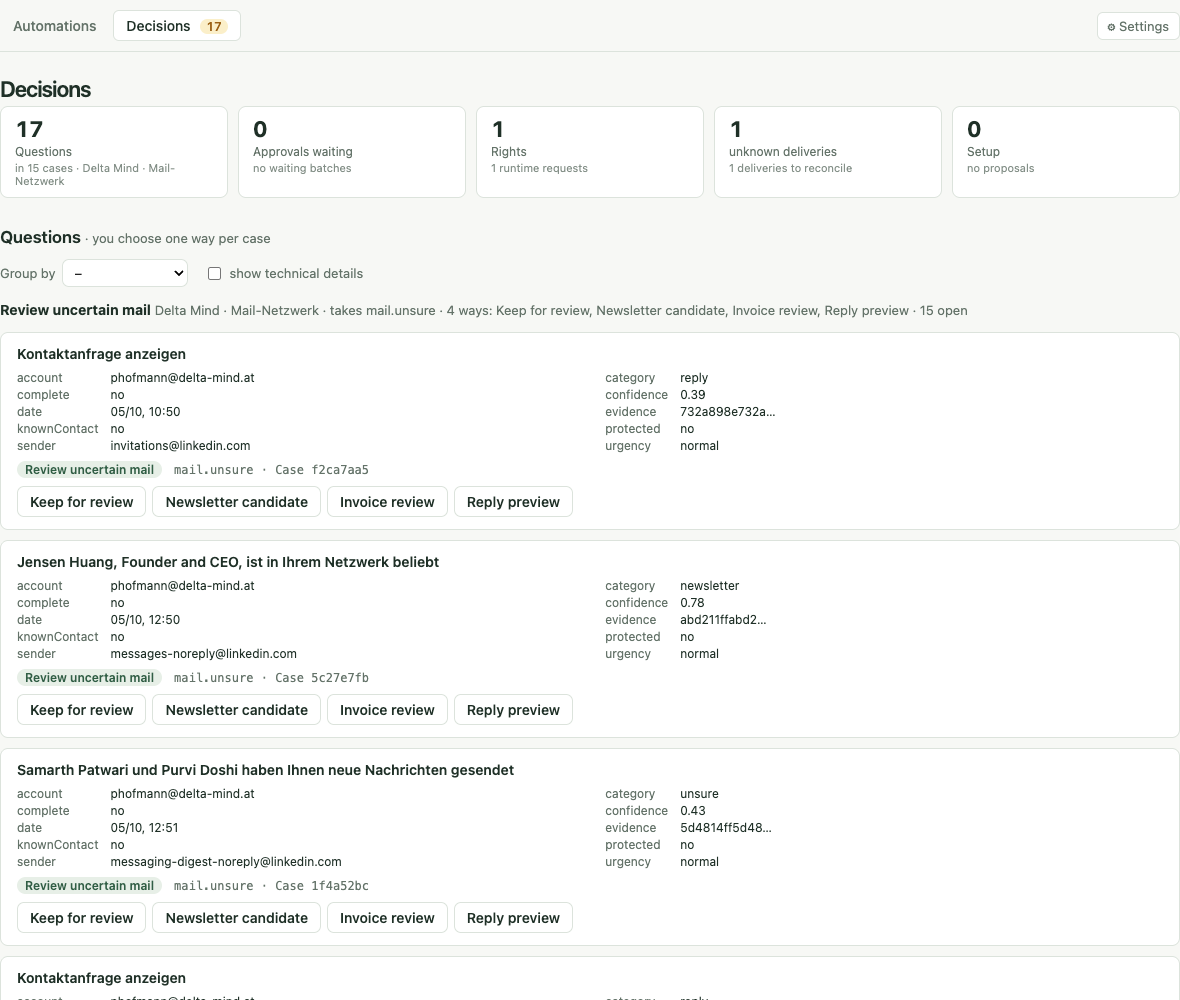
The Decisions tab lists five kinds of owner decisions: Questions from choose routes of a network, Approvals of batches at the identity provider, Rights a Pod is missing, Unknown deliveries whose result is unclear and Secrets requested through OpenApe Secrets. The number in the tab is the count of open items.
Questions show the recorded fields of each case and the options of the gate with their exact titles; Group by bundles cases by one field so a single choice applies to the whole group. Approvals link to the identity provider, which shows a batch as one list with a checkbox per item: approve the selected items and the others are denied. Each item has its own single-use grant, so only approved items continue and a denied item goes to the gate's excluded channel if it has one; rights open the approval; unknown deliveries need your observation at the destination before Delivered or Not delivered, send again.
Pods never decides for you: no model and no schedule chooses, approves, excludes or pauses. Your signed-in Codex session acts with your identity for one hour, like a signed-in CLI you use with Codex: it can approve, deny and revoke the rights your Pods request, and the run activity marks such approvals as approved in Codex session. Outside that session rights are decided at the identity provider only; the app shows status and links.
- Open Decisions; the tab shows how many items wait.
- Read the case, then choose an option; Group by decides many cases with the same field at once. For an approval batch, open the identity provider, select the items to approve and confirm.
- For unknown deliveries check the destination first, note what you saw and record it.
- Secrets lists open secret requests with the link to fill them in at secrets.openape.ai.
Connect your personal accounts
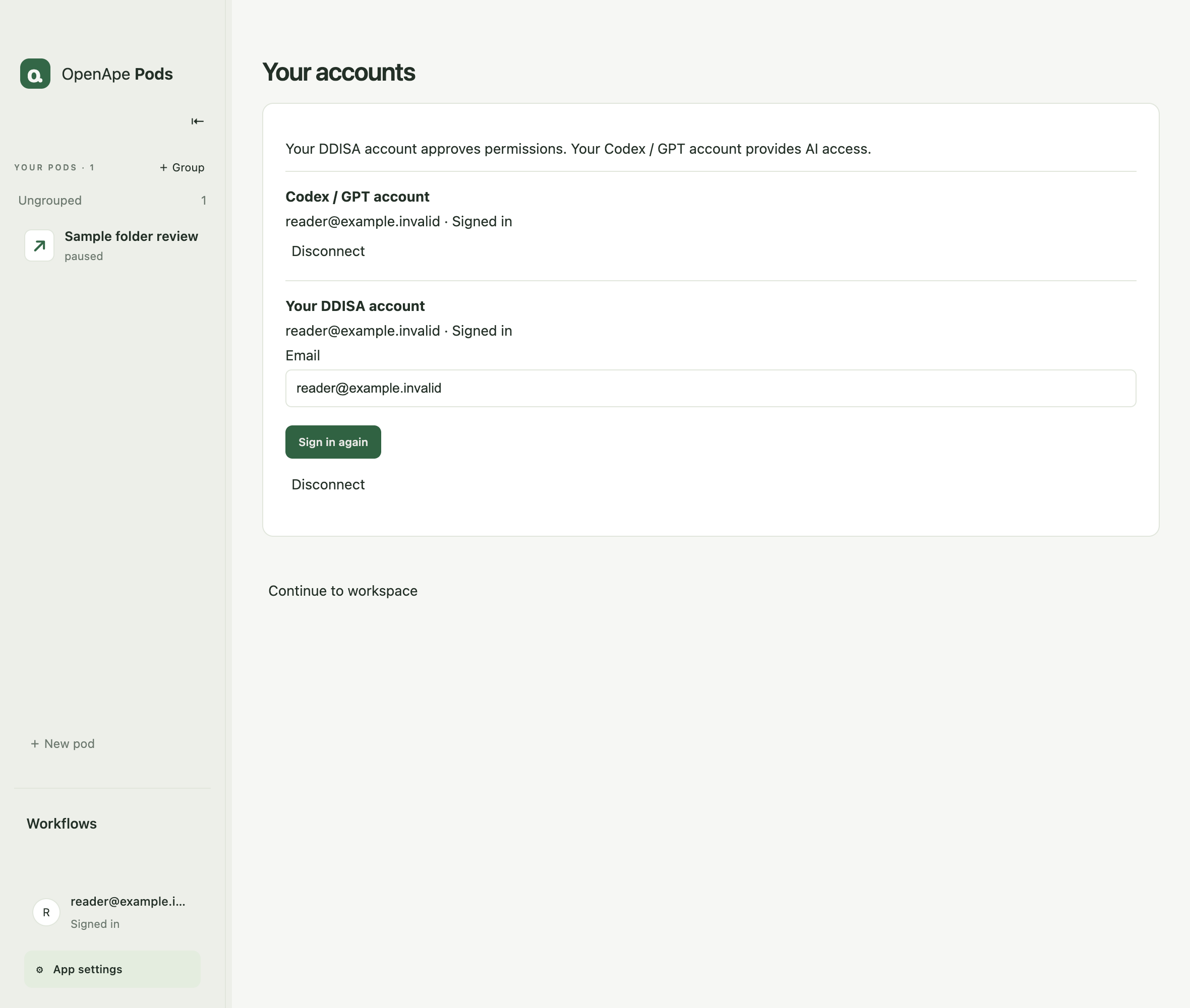
Choose your account at the top right, or open the gear menu → More settings → Open desktop settings, and go to Your accounts. Connect your DDISA account to decide permission requests and your Codex / GPT account for LLM calls. Optional TypeSafe / Jev setup is on the same page.
Pods finds your identity provider through the DDISA record of your email domain. Every Pod and permission uses this one DDISA account; there is nothing to select. Pod agents are not your accounts and are never listed here. Switching to another DDISA account gives your Pods new agents, and their permissions must be granted again.
Other services are configured per Pod: application sign-in belongs in Permissions, and tokens or passwords belong in Variables and secrets. You do not need a personal account or an additional sign-in at pods.openape.ai.
- Under Your DDISA account, enter your email and choose Sign in. Complete the browser flow and return to Pods; the account shows Signed in.
- Under Codex / GPT account, choose Sign in. Complete the offered browser flow and check Signed in before using AI-powered scripts.
- If an account later shows Expired or an error, choose Sign in again on the same account. Enter another email only if you want to switch accounts, and review Confirm switch.
- Choose Continue to workspace. To change the interface language, use the gear menu → Language.
Structured decisions with Jev
Connect TypeSafe with an API key in the desktop settings (account button at the top right, or gear menu → More settings). The key is verified using model discovery, stored encrypted on this Mac, and never given to scripts or Codex. Replacing the key preserves the connection. Codex configures the Pod assignment through the resources API.
Codex writes the script; Jev evaluates bounded semantic questions at runtime. Use ordinary code for exact rules, Jev for Choice, Score or Noul decisions, and an explicit agent.run call for generated text. A Jev-only script needs no active Codex account. Synthetic validation proves the script contract, not decision quality.
Review what text the script sends to TypeSafe. Preserve ambiguous decisions for review and test German/English examples before relying on automation. Retries may incur additional charges; history shows successful evaluation usage, model, attempts and duration.
- Enter the API key in the desktop settings → TypeSafe AI - Jev - API Key.
- Ask Codex to configure Jev through the resources API with a pinned model such as jev-1.13.0 and an attempt budget (default 20 per run), then declare jev.evaluate in the script capabilities. Script and Permissions contain no Jev setup panel.
- Validate, inspect the script and run once. Connecting alone never grants a Pod access. Central web shows availability; enter keys on the owning desktop.
const result = await context.jev.evaluate({
  state: context.variables.sampleMessage,
  questions: { relevant: { type: 'noul', instructions: 'Is this a support request?' } },
})
const relevance = result.answers.relevant.noul
Create your first Pod
Pods are created by Codex only. Choose New automation with Codex on the Automations tab: Pods writes a brief from the selected group or node, copies it and opens Codex when it is connected. Describe the source, the desired result and how you will recognize success.
Connect Codex once under the desktop settings → Work from Codex and restart Codex; the gear menu shows whether Codex is connected. Pods contains the map, the decisions and the Pod editor; conversations stay in Codex.
Connected Codex can configure access, save and validate a script, activate it and enable a schedule when requested. Its confirmation policy belongs to Codex. A response saying ready is not evidence of a completed run.
Every right is requested by the Pod itself. The sandbox decides what a Pod can reach (applications, HTTPS destinations, folders, secrets and whether its programs run isolated or with your reach as owner, which never changes the Pod identity); its grants decide what it may do, and a call needs both. In your Codex session Codex sets up both and approves the grants right away, including the runtime grant, so the first run starts without a prompt. Without a session the first run asks your identity provider for its runtime grant: choose Allow Pod execution there once, and later runs of this Pod proceed without asking; Once covers only the current run. Assigning programs, HTTP destinations, SSH targets or Jev outside a session requests their grants and opens the approval page. Denied or revoked grants keep runs blocked. A run that wrote to an application or sent an HTTP write is not retried automatically. The MCP session row shows until when Codex is signed in; End session revokes its access immediately. Use “Manage existing grants at the IdP” to open the owner identity provider and revoke existing grants. The central web interface cannot change these settings.
- Hand the brief to Codex; it creates the Pod and its script and configures the access it needs.
- Provide ordinary settings in Codex; transfer secrets through OpenApe Secrets or enter them on the detail page under Secrets.
- Ask Codex to configure the required access and validate the saved script.
- Inspect the actual saved script, assignments and schedule in Pods.
- Check a real run and its external result before relying on the automation.
Review the Pod identity and provider permission
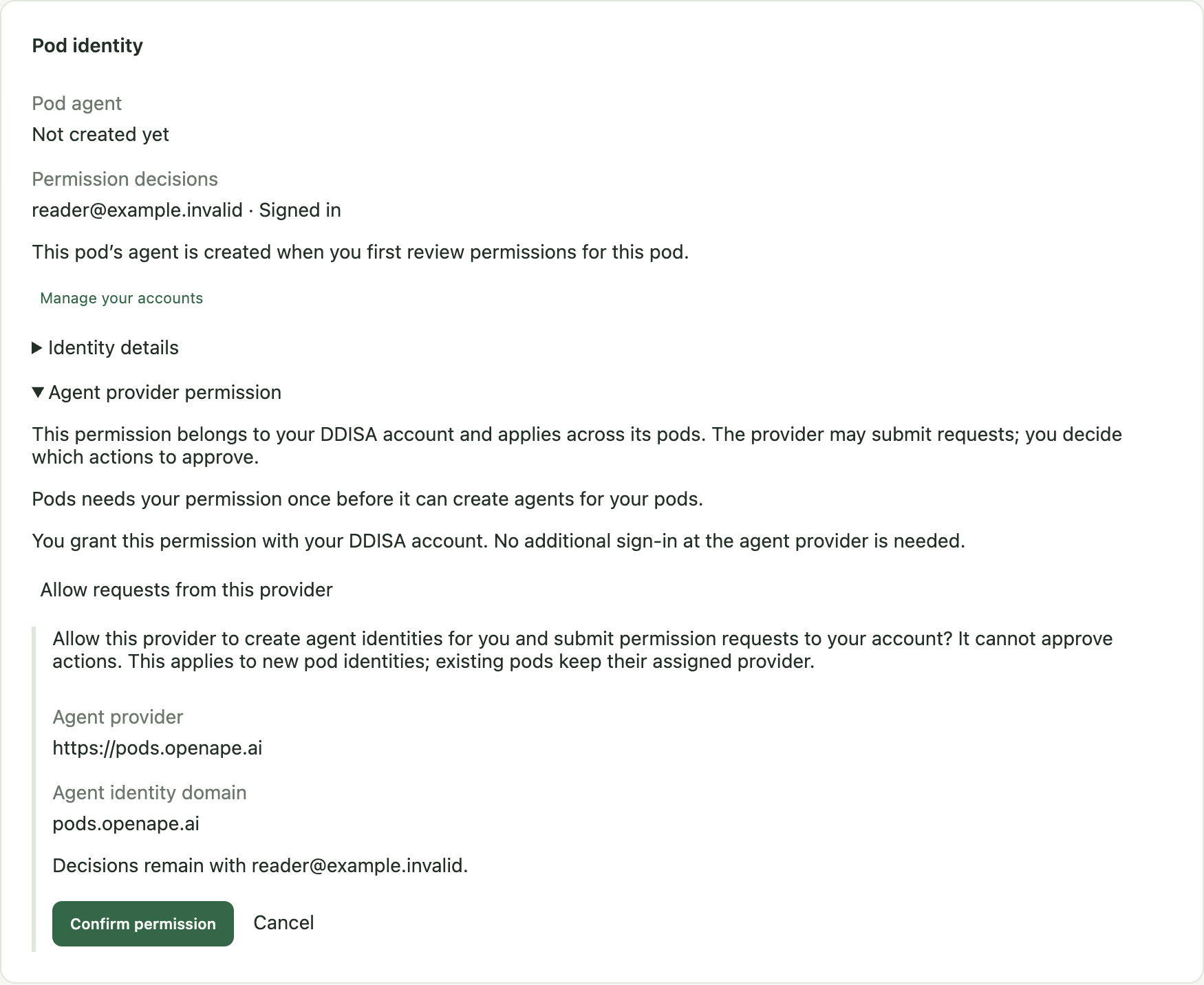
Open the Pod’s Settings → Pod identity. Permission decisions shows your DDISA account. Pod agent identifies the agent acting for this Pod. It is created when you first review permissions; Not created yet before that step is expected.
Before the first Pod agent is created, Pods asks once for permission under Agent provider permission. Choose Allow requests from this provider, check https://pods.openape.ai, agent domain pods.openape.ai and the deciding account, then choose Confirm permission. No additional sign-in at pods.openape.ai is required. The provider creates agents and submits requests; you decide which actions to approve.
This permission belongs to your DDISA account and applies to all your Pods. Although you manage it inside a Pod, it is not limited to that Pod. It does not give the provider the right to approve actions or activate automation.
Existing Pods keep their agent, key and grants. Identity details shows the agent and decision providers for diagnosis. A Pod’s agent changes only when you switch to another DDISA account.
Allow only the access your task needs
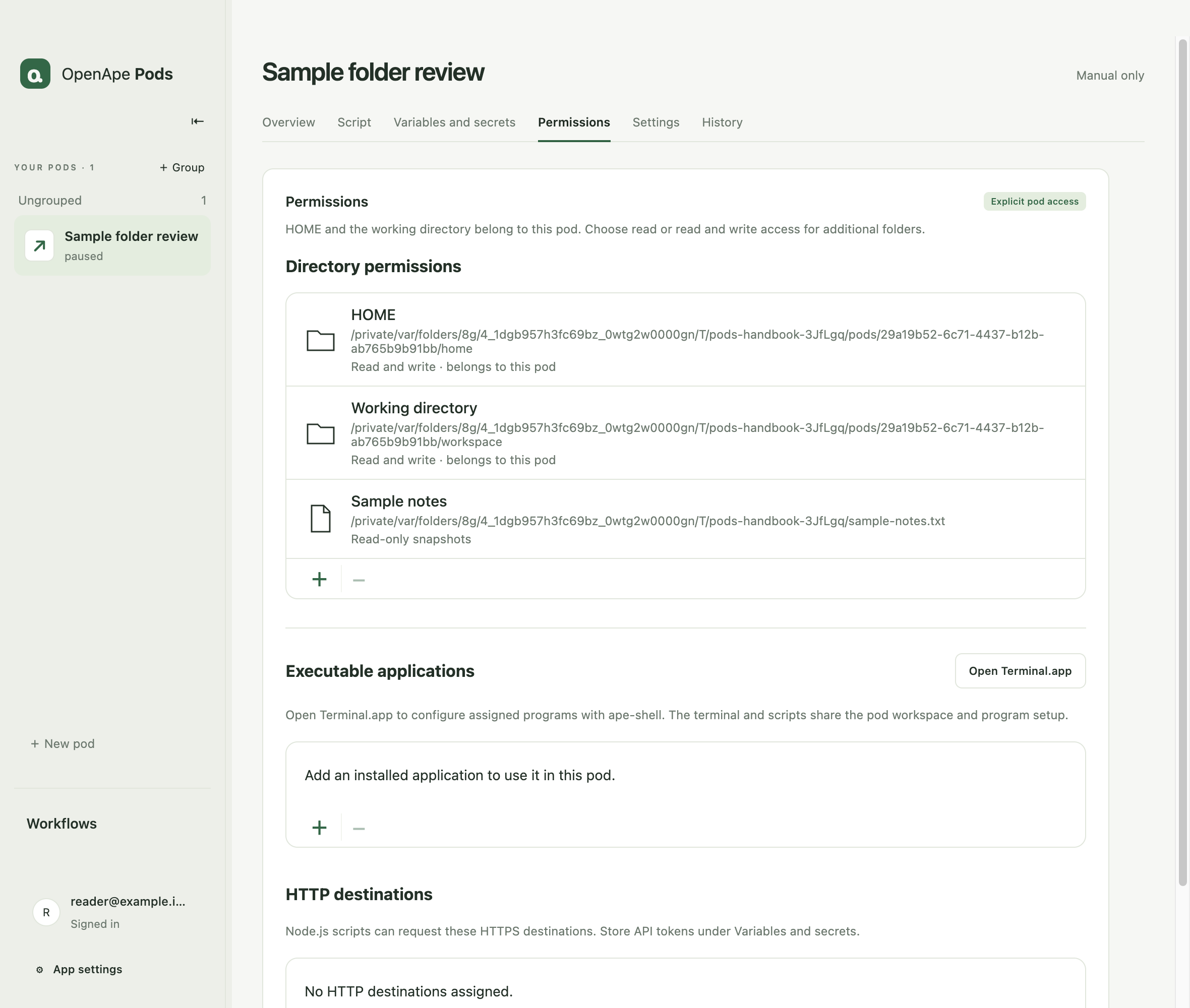
Permissions separates folders, applications and HTTP destinations. Manage them directly or ask connected Codex to configure them. Provider sign-in and authentic external grants remain required.
Folder access applies to original files and subfolders. Read and write permits changes and deletion. Choose Read for your first sample task. External setup terminals and Play-launched applications run with your Mac user’s permissions; they do not gain the script’s folder sandbox.
After changing assignments, a Pod is paused and its previous script validation no longer applies. Return to the script, validate the new setup with a manual run and resume automation only when ready.
- Folders: use +, choose a folder and confirm Read or Read and write in the native dialog. Verify the path and access in the list. A missing or replaced folder must be assigned again.
- Applications: use + to select an installed app or CLI. Configure its own account through Open Terminal.app or Play. Check the account inside that application. Exit the terminal or close the application normally to save setup; an open terminal pauses automation even while idle.
- For automated application calls, select the application and allow its required HTTPS hostnames. Command approval still applies. These hostnames are separate from the HTTP destinations used directly by the script.
- HTTP destinations: use +, enter the exact HTTPS origin and allow only the required methods. Review the browser permission request. Direct requests cannot follow redirects or reach private network addresses.
- Recheck the listed resources before running. Use − on a selected row to revoke an unneeded assignment.
Set variables and secrets safely
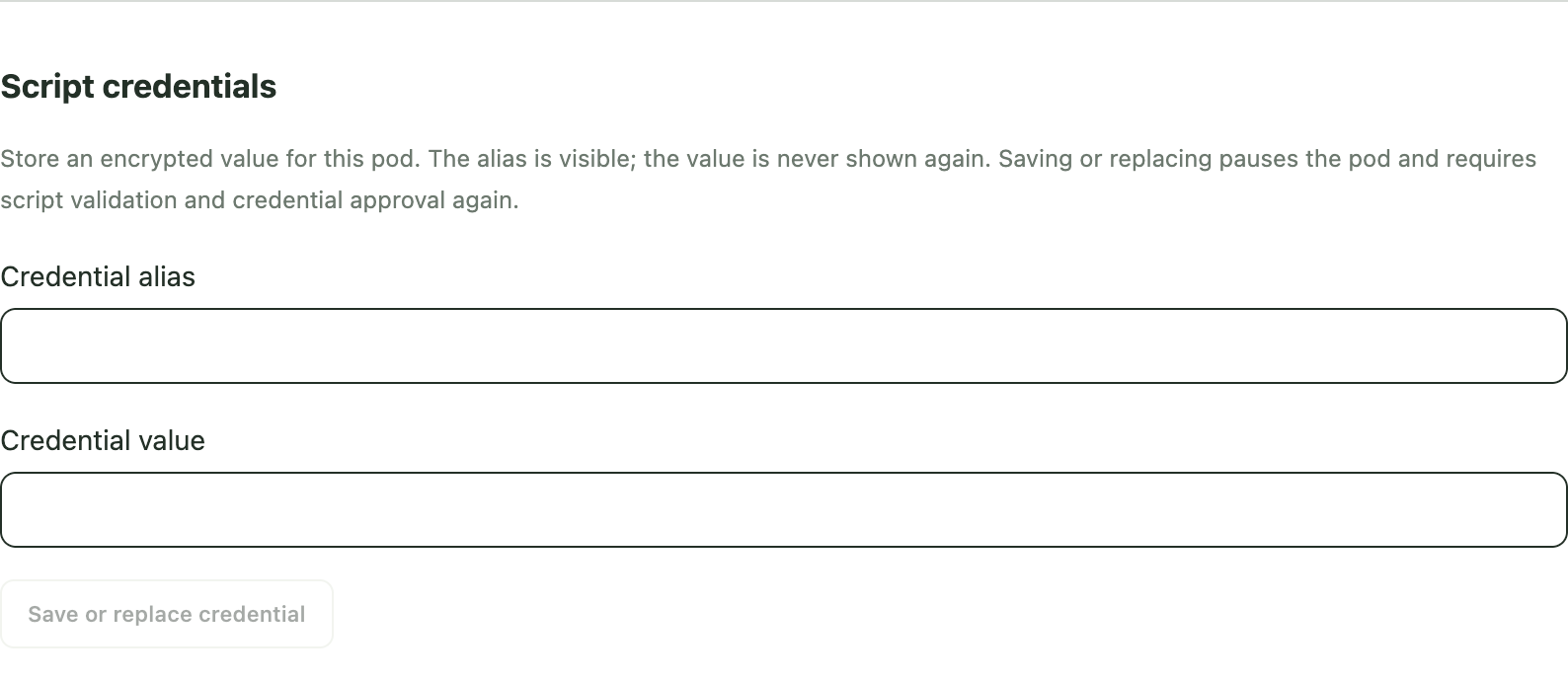
Use Variables and secrets for this Pod. Ordinary variables are visible to the assistant and are not encrypted. Use them for non-sensitive settings such as a folder label or destination ID. Passwords, API keys and tokens belong in Secrets.
Codex can ask for a secret by name and purpose but cannot read its stored value. On the detail page under Secrets choose + Secret: type the value, read a private file on this Mac, or request it through OpenApe Secrets. Never paste it in conversation, source, screenshots or support messages.
A request through OpenApe Secrets registers this Mac once as a consumer with its own key and lists the request under Decisions → Secrets. You fill it in at secrets.openape.ai in the browser; the value is sealed against the key of this Mac, Pods collects it once and the request is destroyed. The gear menu shows the registration with Revoke. Codex can raise the same request with requestSecret; it sees only the alias.
Assigning a secret lets this Pod’s validated scripts read that alias. Review the source: a script can deliberately copy a secret into a prompt, file or log. Secret storage does not make arbitrary code safe. Managed secret values are encrypted locally and excluded from backup exports.
- On the detail page choose + Secret, or Replace beside an alias. Type it: enter the value in the masked field and Save. From a file: choose a private file on this Mac. From OpenApe Secrets: enter the purpose and Request.
- Check the alias in the list. The value field clears after submission, even if saving fails; use the displayed result to check success.
- Every secret assigned to this Pod is available to its scripts; no separate script access is needed. Check that the script reads exactly the aliases listed here.
- Review the aliases used by the script, then ask Codex to validate and finish configuration or use the Script controls directly.
Run manually and check the result
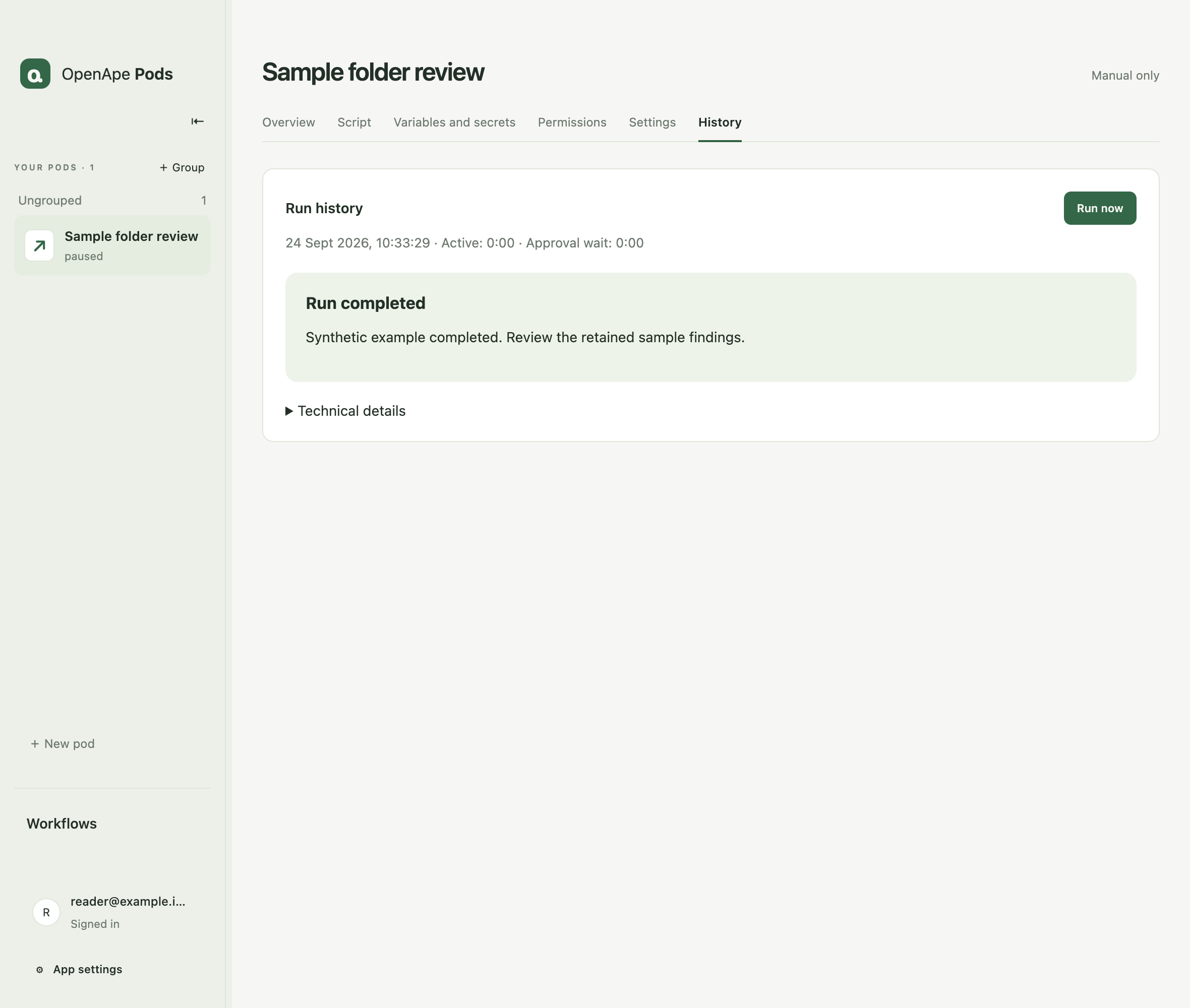
A first successful run proves more than a chat reply or synthetic validation. For the sample folder task, compare the reported filenames and count with the folder you selected. Confirm that no original file changed. Other tasks need their own visible success check.
Run in Script saves and validates changed source before starting it. Validation uses simulated services; it cannot prove that a real account, later input or delivery will work. A failed validation preserves the draft and leaves any previously active script intact. Recheck the saved state before trying again.
- Leave the schedule disabled. In Script, inspect the saved source and choose Run or Save and run. If an active script is already ready, Overview → Run now starts a manual run.
- If a permission request opens, review the Pod, action and account in the browser. Once authorizes the current request; Allow Pod execution creates a revocable standing permission. Use Open approval in the waiting card if the browser did not open.
- Open History and select the run. Read the result, next action and What happened. Completed with gaps needs review of the missing evidence; a waiting, stopped or failed run is not success.
- Check the actual output and, for actions outside Pods, the destination. Overview shows the last result; Results and sources shows retained findings when the script creates them.
- If the run failed, open Technical details, fix the indicated account, resource or script issue and follow the recovery steps below. Do not enable a schedule while the manual result is unresolved.
Enable a schedule deliberately
Automatic execution runs on this Mac, not in the cloud. Closing the window keeps Pods available in the menu bar. Quit Pods stops local execution. While the Mac sleeps, scheduling is suspended; the app does not wake the Mac to run a Pod.
When the app is running again or the Mac wakes, an overdue enabled schedule queues one catch-up start if a schedule start is not already pending. It advances the next due time into the future instead of replaying every missed interval. Saved progress and the script determine which data that run processes; this does not guarantee that every missed email or file is recovered.
Interrupted runs and blocked or claimed inputs need recovery before further work can start. One Pod can run only once at a time. Pausing blocks new automatic starts but lets an active run finish; use Cancel run in History to stop it. Connected Codex can enable schedules when you request it.
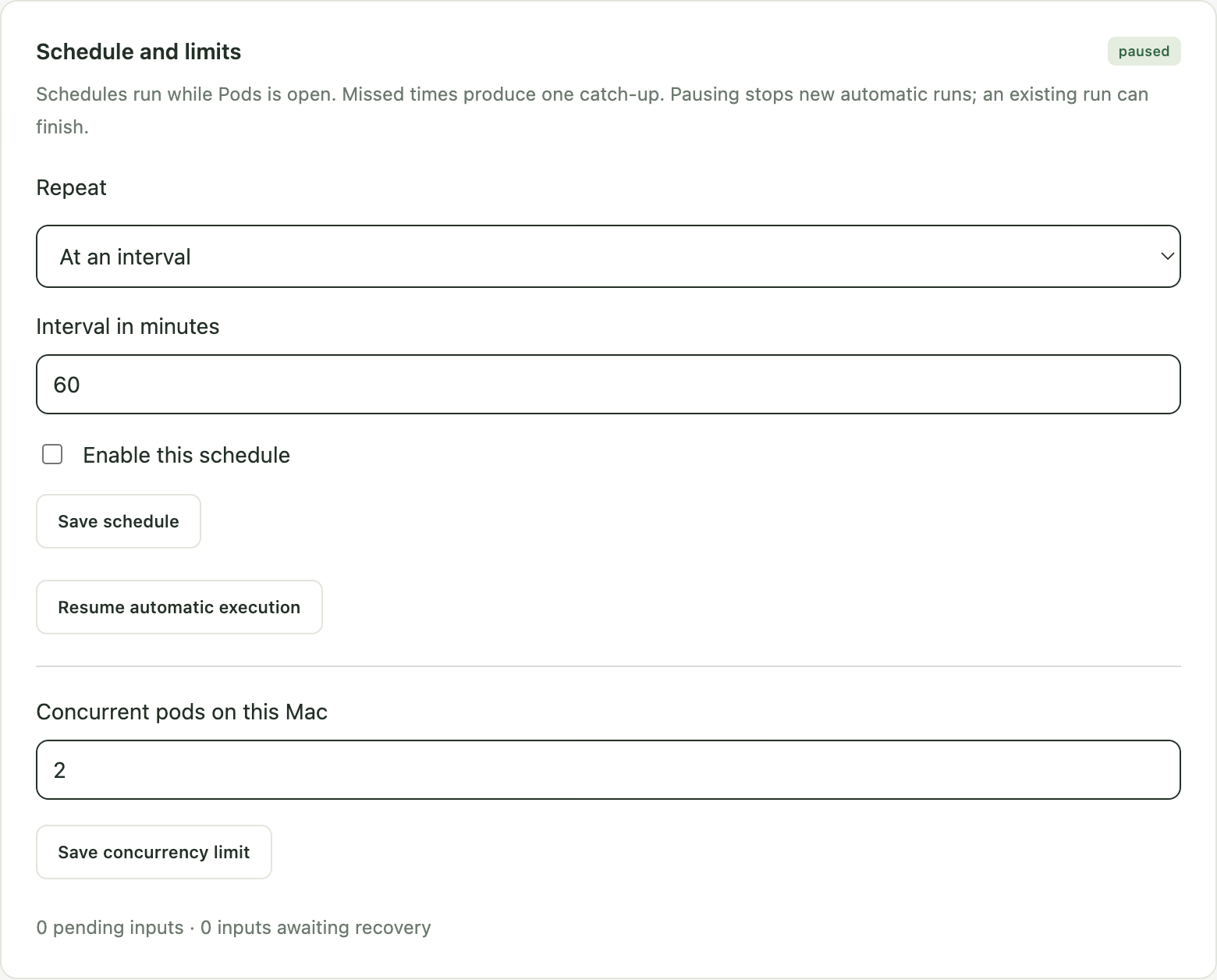
- After a successful manual run, open Settings → Schedule and limits. Choose At an interval and enter minutes, or Daily with Local time and an explicit timezone such as Europe/Vienna.
- Check Enable this schedule and choose Save schedule. If the Pod is paused, separately choose Resume automatic execution after reviewing readiness.
- Check Next scheduled time, the enabled state and any displayed error. Keep Pods running and the Mac awake when execution is needed.
- To stop future scheduled work, disable and save the schedule or pause automatic execution. Inspect History after sleep, quitting or a crash before retrying interrupted work.
Troubleshooting: what to do next
Codex reports ready: inspect the saved script, resources and actual run state in Pods. If input is missing or an operation failed, ask Codex to inspect current state and repair it.
Account unavailable: choose your account at the top right → Your accounts and choose Sign in again on the account that shows Expired or an error. For AI access, check the Codex / GPT connection and the model selected in the script. Switching to another DDISA account does not repair an agent; it replaces all Pod agents.
Waiting for approval: use Open approval in the waiting card or Decide at the IdP in Decisions, and decide the request at your DDISA provider. The run waits until you approve or deny it; Cancel run stops waiting. A request left undecided for 48 hours expires at the provider, and the next run asks again. A denied request keeps the Pod blocked until you change the decision there.
Permission or validation error: open Technical details in History. Check the exact folder, application, HTTPS hostname, HTTP method or secret alias in the named Pod. Reassign a missing resource, save the corrected script and validate again. A permission-service failure does not by itself mean your mail account needs a new login.
No automatic run: check the enabled schedule, Next scheduled time, paused state and active script. Close any setup terminal normally. Keep the Mac awake and the app running. Resolve stopped runs, blocked inputs and resource errors in History before resuming.
Interrupted or failed run: select it in History and choose Prepare retry. This checks saved progress without starting the script. Resolve uncertain deliveries, then choose Retry unfinished work when offered. Use Retry unstarted requests for blocked starts. Repeated clicks on Run can create extra requests.
Unknown delivery: check the external destination first. Record what you observed in History, then choose Already delivered or Not delivered · allow retry. Do not guess or blindly resend; a lost response does not prove that nothing happened.
Worker unavailable or unsupported host: read the displayed diagnostic, resolve the stated cause and reopen the app. An unsupported OS or CPU cannot be fixed by changing the script. At a storage limit, use Data & backups to inspect space, export a backup, clean unused files or adjust the limit, then inspect interrupted work.
When requesting help, include the app version, failed step and the non-sensitive error text. Remove personal content and secret values from screenshots and logs. A successful synthetic check is not proof of live account or delivery behavior.
Pause or revoke access
To stop future automatic starts, pause the Pod in Settings. To stop an active run, use Cancel run in History. Pausing does not remove its permissions.
To remove a folder, application or HTTP assignment, select it in Permissions and use −. Remove a secret assignment in Variables and secrets to revoke access and remove its encrypted value. Inspect the paused Pod and its validation state before further use.
To revoke provider consent, open Settings → Pod identity → Agent provider permission → Revoke provider permission and review Confirm revocation. This affects all Pods using that DDISA account’s provider consent, including existing recurring permissions. The equivalent account control is Account & security → Agent providers at the decision identity provider.
Revocation blocks new requests and further grant use, but cannot undo an already started command or earlier external effects. Existing identities and local data remain. A new consent does not restore the old identities or grants; do not reconnect expecting the old binding to work again.
Disconnecting a DDISA account under Your accounts revokes permissions using it and pauses affected Pods while retaining data and account assignments. Disconnecting Codex / GPT stops AI requests until you reconnect. Review the confirmation before either action.
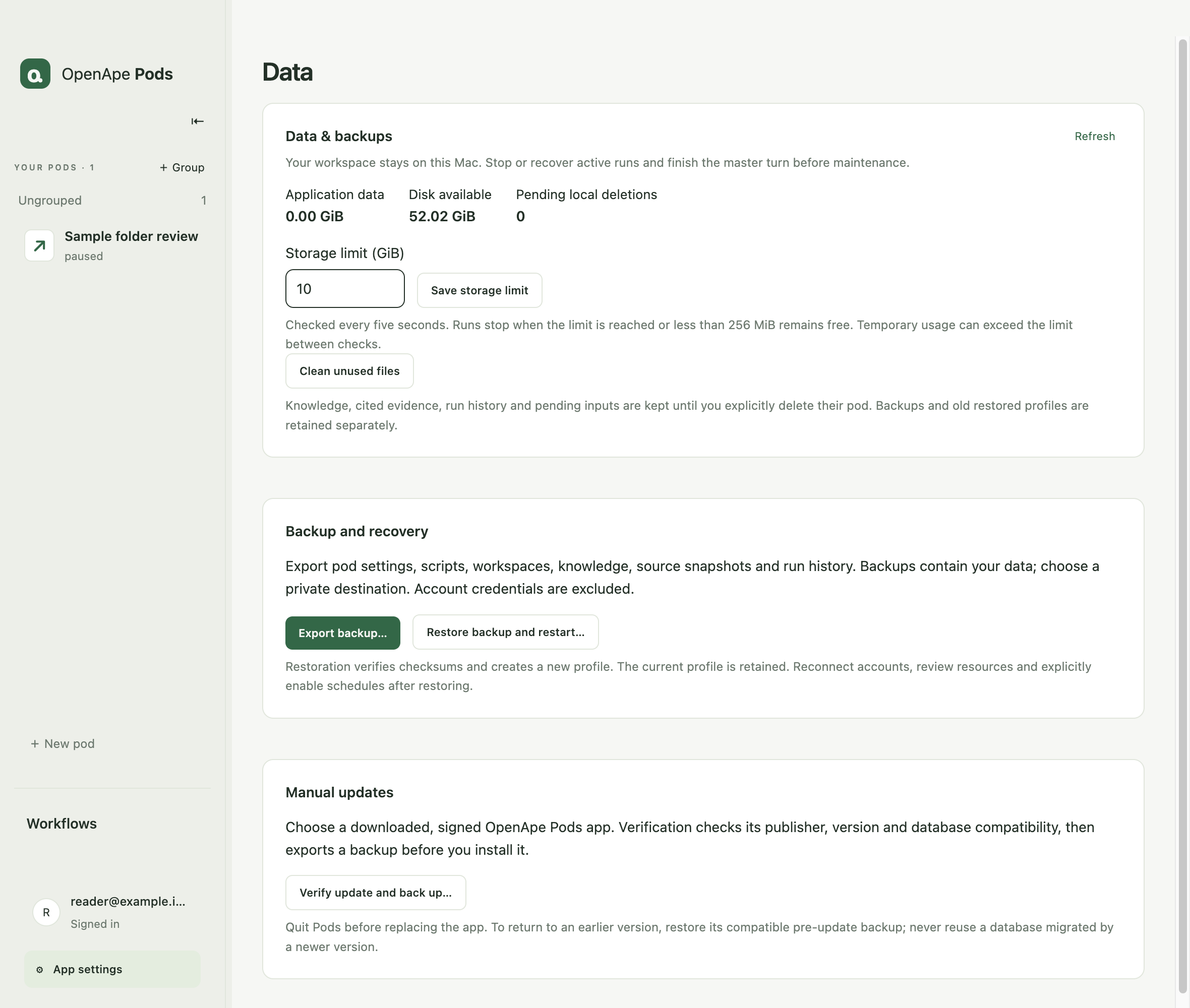
Back up and restore your work
Choose your account at the top right → Data & backups, or choose Export backup… in the gear menu. Normal app data lives in ~/Library/Application Support/OpenApe Pods. Use the export and restore controls instead of copying a live database.
Export includes settings, scripts, workspaces, knowledge, sources and history. Managed account credentials, secret values, protected application state and shell HOME/history are excluded. Personal content or secrets you manually wrote into script source or workspace files can still be in the backup. Keep exports private.
Restore backup and restart verifies checksums, creates a new profile and retains the old one. It does not silently resume automation. Reconnect accounts and applications, re-enter secrets, review resource paths and permissions, validate scripts and manually verify a result before explicitly enabling schedules.
Verify update and back up checks an approved signed update candidate and prepares a backup; installation is manual after quitting. An internally signed/notarized build with releaseReady: false is not an approved public update candidate. Keep the previous app and a compatible backup for rollback; never open a newer migrated database in an older app.
- Finish the assistant response and stop or recover runs before maintenance.
- Choose Export backup and select a safe location. Check that the operation completed and retain the exported file.
- To restore, choose Restore backup and restart, select your export and review the confirmation.
- After restart, reconnect required services, restore secret values separately and perform the manual checks above. Choose the interface language again if needed.
Choose your language
Open the gear menu at the top right and use Language to switch between Deutsch and English. Your choice is saved per local profile and applies to the interface, native menus and app-owned dialogs. Unsaved editor content is retained when navigating there.
Pod and group names, knowledge, sources, conversation messages, script code and technical audit payloads stay in their original language. The switch does not translate your content or change model prompts. Known app diagnostics are translated; an unknown external diagnostic is labeled and retained exactly. Dates and numbers follow the selected display language; stored times, schedule time zones and script contracts remain unchanged.
The handbook is available as complete English and German offline editions with matching app screenshots. Use the link to the other edition in the handbook navigation. Keep both HTML files together when using those links. The language preference is local display configuration; a restored profile starts from its system default until you choose again.
Organize pods in groups
Groups organize related Pods; the Automations tab filters the map and the list by group. Every Pod belongs to one flat group or Ungrouped. Group names and membership are saved on this Mac and included in backups.
Grouping does not share resources or permissions, invalidate a script or alter a running task. New Pods begin in Ungrouped. Removing a group keeps every pod; deleting a pod remains a separate Data & backups action.
- Ask Codex to set the group of a Pod, or open the Pod editor with Details öffnen and choose Group under Settings; a new name creates the group. Names contain 1–100 characters; up to fifty groups are supported.
- Choose a group chip on the Automations tab to show only that group; All and Without group are always available.
- Rename or remove a group through Codex; removing keeps every Pod and moves it to Ungrouped.
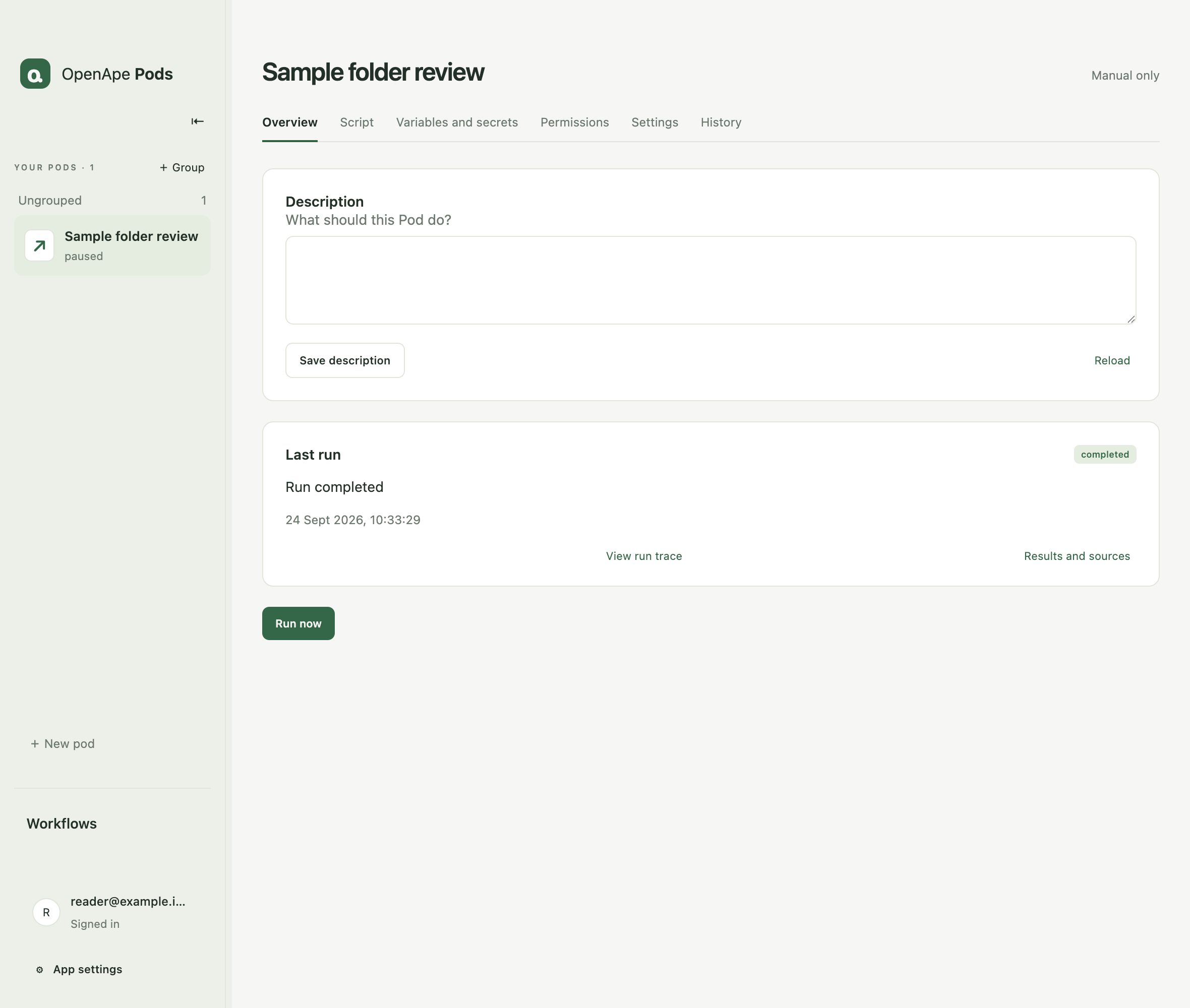
Overview
Description is an editable statement of the Pod purpose. Existing descriptions are retained. Save description updates it directly and rejects a conflicting revision.
The description does not change script execution or permissions. Ask connected Codex to implement behavioral changes, then inspect the saved script and real run history.
- Open a Pod with Details öffnen on the Automations tab and edit Description.
- Save description, or reload to read a concurrent update.
- Inspect the last run and use Run now when the script is ready.
Further detail: Inspect and edit your script
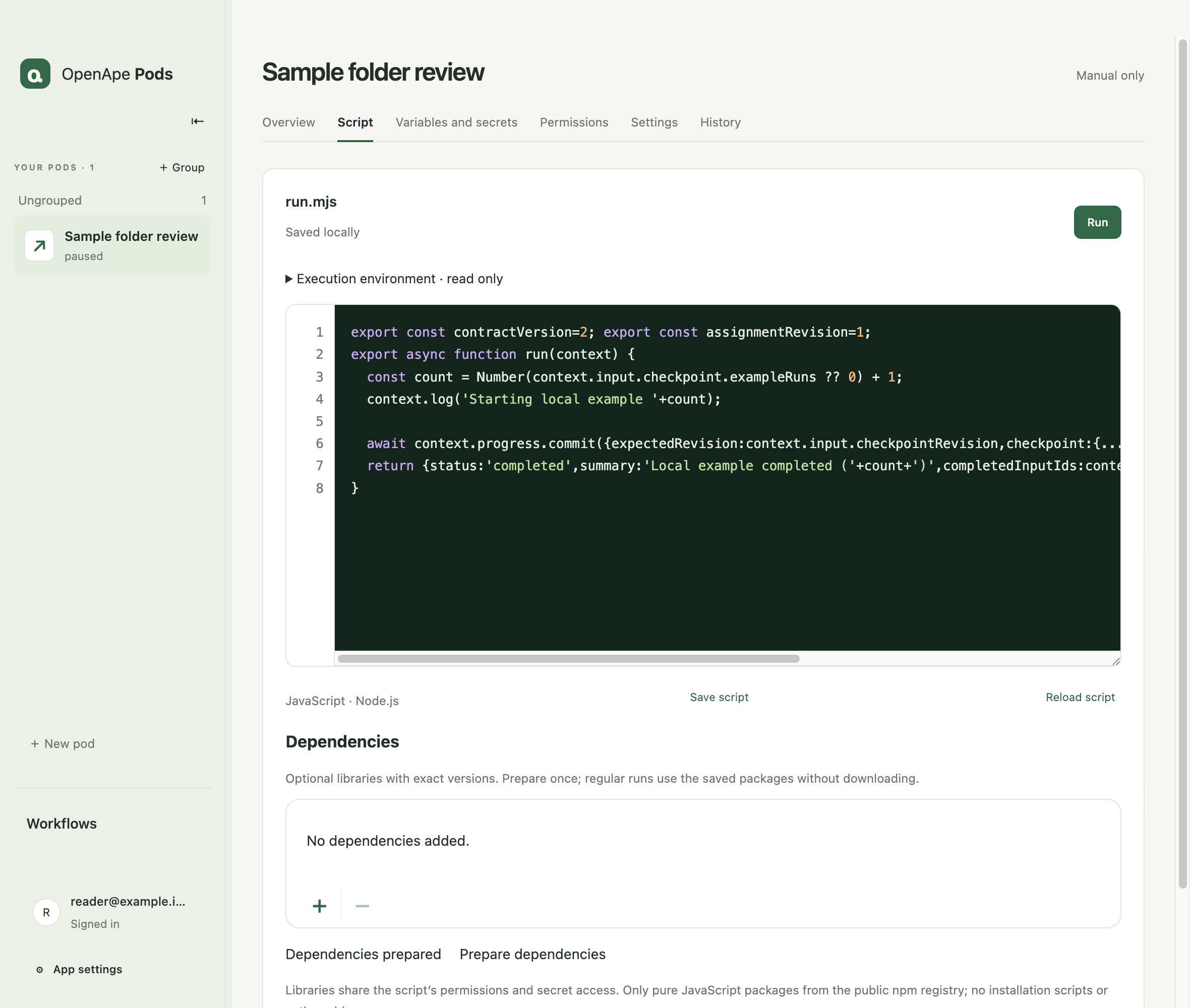
The Script tab opens the current saved working source, including a newer saved draft. V1 has no version browser, comparison or rollback controls. Internal immutable script hashes, validation and run pinning remain enforced.
The highlighted JavaScript editor supports line numbers, horizontal scrolling, two-space Tab indentation, Escape followed by Tab to leave, and Cmd+S (Ctrl+S) to save. Source is rendered literally and is not executed in the renderer.
Unsaved script, ordinary variable, and settings survive navigation within this app session. Save before quitting. Reload script asks before discarding changed text. If a concurrent change causes a conflict, reload the current source or explicitly save your edits as the current script.
Available variables and secrets expands a reference list with copyable access expressions. Secret values stay hidden. Manage variables and secrets opens their dedicated tab. Manage script secrets in Variables and secrets, and script applications in Permissions. Selecting a capability does not grant resource access.
Saved runs start through the bundled ape-shell as the pod agent. The Node.js run(context) contract remains unchanged; HOME, working directory and SHELL match the setup terminal. Missing grants block execution. context.tools.invoke reuses application setup; secrets do not automatically enter the AI context.
Under Dependencies, the list shows each package and its fixed version. Click + to search the public npm registry, paste an npm package-page URL, or enter name@1.2.3. Select a result, review the exact version and add it; selecting an existing name updates its declaration. Select a row and click − to remove it. These edits are saved with the script. Prepare dependencies downloads the selected packages after confirmation. Searching and adding do not install anything. Git, tarball and private-registry URLs are not supported. Libraries share the script’s permissions and secret access. Preparation excludes installation hooks and native addons; regular runs use the verified read-only package tree without downloads or updates. Package changes require validation; existing Pod secret assignments remain in effect. The saved package.json remains available to connected Codex.
- Edit the source and choose Save script to persist it without running.
- Choose Run or Save and run. The app saves and validates changed source in the existing sandbox with synthetic services. A failed check preserves the source and leaves the previously active script intact.
- If the script reports a missing secret, assign its alias in Variables and secrets and validate again. Existing Pod assignments also apply after script edits.
- After successful validation and any required owner approval, the app activates that exact source and starts it. History shows the result. This does not enable automatic execution.
Further detail: Variables and secrets
Ordinary variables are named strings stored in SQLite for this pod. Use context.variables"name" in scripts. Up to 32 variables are supported, with values up to 2,048 characters. Values are captured for each run; later edits apply to future runs. These values are not encrypted. Store sensitive values as secrets.
The dedicated tab shows all stored variables and secrets for this pod. Empty variables are marked Not set. Secrets required by the saved script also appear before a value has been assigned; choose Set secret to prefill the alias. Assigning a secret authorizes this Pod to read that alias from its validated scripts; removing the assignment revokes access.
Each pod owns its script versions, workspace, persistent checkpoint and credential assignments. Under Variables and secrets, enter a Credential alias and a masked Credential value, then choose Save or replace credential. An alias starts with a lowercase letter and contains at most 64 lowercase letters, digits, underscores or hyphens. Values contain 1–16,384 characters without null bytes. Each pod supports 32 current aliases; a script can declare up to 16 capabilities including assigned application and HTTP capabilities.
Values are encrypted with macOS safeStorage under the active application profile’s credentials directory. Resource records and editor history contain aliases and opaque IDs, never the automatically supplied value. Two pods may use the same alias with different values. ChatGPT and OpenApe tokens stay inside their connection broker. Imported application state is delivered only to its program, separately from script secrets.
await context.credentials.get('crm') returns the string assigned to this pod and alias. Every secret assigned to this Pod is available to its scripts without additional selection, declaration or approval. The runtime verifies the current run lease, exact script version, execution binding, resource revision and current secret assignment before and after reading. Codex has no credentials.get tool. Values are not automatically added to input.json, environment, AI prompts or run logs.
A script that can read a secret can explicitly put it into a prompt, log, checkpoint or file. Review the full source before granting access. Synthetic validation checks the execution contract with synthetic-credential-
Saving or replacing a credential pauses the pod and invalidates prior validation. Script source changes alone do not require another secret approval. Revoking it cancels affected work and removes its encrypted value. After restore, assign secret values again and revalidate scripts; managed secret values and their recovery records are excluded from backups. An interrupted save is reconciled on restart.
The example below combines normal Node file IO, durable variables, an explicit credential read and a separate AI call. It deliberately keeps the credential out of the prompt. It requires an assigned crm alias, Pod execution permission and a connected model for real execution. Validation uses a synthetic model response. Direct network access and launching child programs remain restricted by the existing runtime; declaring a credential does not grant either.
- Open Variables and secrets. Enter the secret alias and value, then save. The masked field clears after submission, including failures.
- Use await context.credentials.get("alias") in the source. All secrets assigned to this Pod are available without a separate script selection.
- Choose Save and run. After synthetic validation, review the Pod execution permission in the browser if requested.
- History shows the run. Source or resource changes require validation; existing Pod permissions remain until revoked.
import { readFile, writeFile } from 'node:fs/promises'

export async function run(context) {
  const credential = await context.credentials.get('crm')
  if (!credential) throw new Error('Assigned credential is empty')

  const notes = context.input.checkpoint.notes ?? 'Review synthetic notes'
  await writeFile(context.workspace + '/notes.txt', notes)
  const text = await readFile(context.workspace + '/notes.txt', 'utf8')
  const answer = await context.agent.run({ prompt: text, tools: [] })
  await writeFile(context.workspace + '/review.txt', answer.response)

  await context.progress.commit({
    expectedRevision: context.input.checkpointRevision,
    checkpoint: { ...context.input.checkpoint, reviews: (context.input.checkpoint.reviews ?? 0) + 1 },
    sources: [],
    claims: [],
  })
  return {
    status: 'completed',
    summary: 'Local review completed',
    completedInputIds: context.input.eventIds,
    gapIds: [],
  }
}
Concurrent edits and recovery
If Codex or another edit changes the saved script while your editor contains unsaved work, the app retains your text and rejects a stale save. Reload script lets you discard your local edits after confirmation. Save my changes as current script explicitly preserves your text as a new working artifact; it still requires validation and any credential approval before running.
Reloading an unchanged editor picks up the current saved source. Saving does not start a run. A Run request rejects a changed active script, an occupied execution slot or pending inputs rather than silently executing different code later.
Further detail: Permissions
Permissions lists HOME and the working directory as permanent writable pod folders. Add additional folders with +, choose Read or Read and write in the native confirmation, and change access with the row selector. Select a row and − to revoke it. These are direct accesses to the original files, including subfolders; write access allows changes and deletion. Existing reference files retain their read-only snapshots. Assignment or access changes pause the pod and invalidate active execution. Missing, replaced or symlinked folders block execution until reassigned; internal app data and runtime folders cannot be assigned.
The macOS sandbox enforces directory read/write permissions for regular scripts and brokered application calls. External setup terminals and Play-launched GUI apps keep the existing Mac-user/ape-shell permission boundary; the directory list does not sandbox those windows. Overlapping folder permissions are additive: an explicitly writable child remains writable inside a read-only parent.
Use + below the application list to select an installed macOS app or CLI. Its name and icon appear with a Play button. Play starts the selected executable without arguments through ape-shell. Select a row and use − to remove its assignment. Existing apes CLI descriptors are detected automatically, or you can select the descriptor file. Applications are not bundled with Pods.
Open Terminal.app opens a separate macOS window above this list. The banner shows the pod HOME, workspace and shell. Run an assigned CLI there using its normal commands, for example o365-cli auth login. Applications manage their own sign-in; Pods does not invent a login-status indicator. Required grants are approved through OpenApe or apes grants approve.
Interpreted CLIs also need their interpreter and package libraries. Connected Codex can assign a runtime descriptor for these code files; terminal setup and automated runs then use the same configuration. Keep extensions in a separate code directory, not in the encrypted sign-in state. Reopen an existing Pod terminal after changing its assignment. A successful terminal login still needs a real automated read check before enabling a schedule.
Grants are managed through OpenApe and checked at execution time. Permissions does not display a static command-grant list, script call snippets or a separate application script-access selector. Application assignment does not bypass runtime authorization.
HTTP destinations appear as a list of addresses and allowed methods. Use + to add a destination; select a row and use − to remove it. The input form opens only when adding a destination. These permissions allow Node.js requests to an explicit HTTPS origin and selected methods through context.http.request. Secrets belong in Variables and secrets. Requests cannot follow redirects or reach private addresses. Current transport uses IPv4 on port 443, a 30-second timeout and bounded responses. Permissions are requested for the pod’s OpenApe agent: adding a destination or an application command opens its approval at your identity provider, where Always allow covers later runs and Just this once only the next one. Until you decide, a run that needs it waits.
An open terminal holds the pod and pauses automation, including while its prompt is idle. Leave the shell with exit and wait for the process to finish so application setup is saved. Automation remains paused afterwards. Assigned programs receive their own temporary HOME containing decrypted application state; later script calls reuse that saved state. The shell HOME is pods/
ape-shell mediates command grants; it does not provide a filesystem sandbox. The setup terminal runs granted commands with your Mac user privileges. A broad session grant permits correspondingly broad shell commands. Use foreground programs; reliable termination of detached background processes is not guaranteed. Automated Node.js scripts retain their additional macOS sandbox, and context.tools.invoke still uses the bounded application broker. Graphical programs and arbitrary child-process trees remain unsupported in that script broker.
Play starts apps directly with the pod workspace and private application HOME, using the normal login Keychain. Some Mac apps ignore HOME or reuse a global profile or existing instance: check the account inside the app. Only programs respecting the supplied context can share setup reliably. Close the app normally to save setup. Interrupted sessions keep the last saved setup. Encrypted state is currently limited to 4 MB and 128 files; large browser profiles are not supported by this storage contract.
Select an application to add or remove its HTTPS hostnames. Sandboxed application calls can connect only to these public hosts on port 443; command grants still apply. This is separate from Node.js HTTP destinations. Changing hosts pauses the pod and invalidates prior script validation. Setup terminals and GUI windows retain their existing Mac-user permissions.
Settings
Settings contains name, group, Pod identity, schedule and limits, and More options. Edit Description directly in Overview. Renaming preserves work and permissions.
More options can archive a Pod or delete an archived Pod after the native confirmation. Deletion removes its local data and variables. Shared accounts and original reference files remain; retained conversation history follows the existing retention policy.
History and recovery
History shows the result, the next action and What happened. Repeated application calls and AI requests are grouped with successful and unfinished counts. Routine permission checks stay in collapsed Technical details, together with the pinned script and persisted events.
Cancel run stops an active run. Interrupted work remains visible after a crash or restart. Choose Prepare retry to check saved progress and possible deliveries without starting the script. Retry unfinished work becomes available after a successful check. Resolve uncertain deliveries first. Overview also leads to this check after a stopped run.
At most one run executes per pod. Other waiting starts counts queued start requests, not emails or files. Repeated start clicks may create several requests. Retry unstarted requests applies to a blocked queue. Checkpoints record successful progress; resuming a Codex thread alone is not a recovery decision.
Changing the script only affects subsequent runs and does not undo earlier results or effects. Internal script hashes remain in execution details for auditability.
Unknown HTTP deliveries appear in History. Record what you observed at the destination and choose Already delivered or Not delivered · allow retry. The former records an owner-attested receipt, not a provider response; the latter permits a subsequent retry. A lost response is never automatically resent.
Results and sources
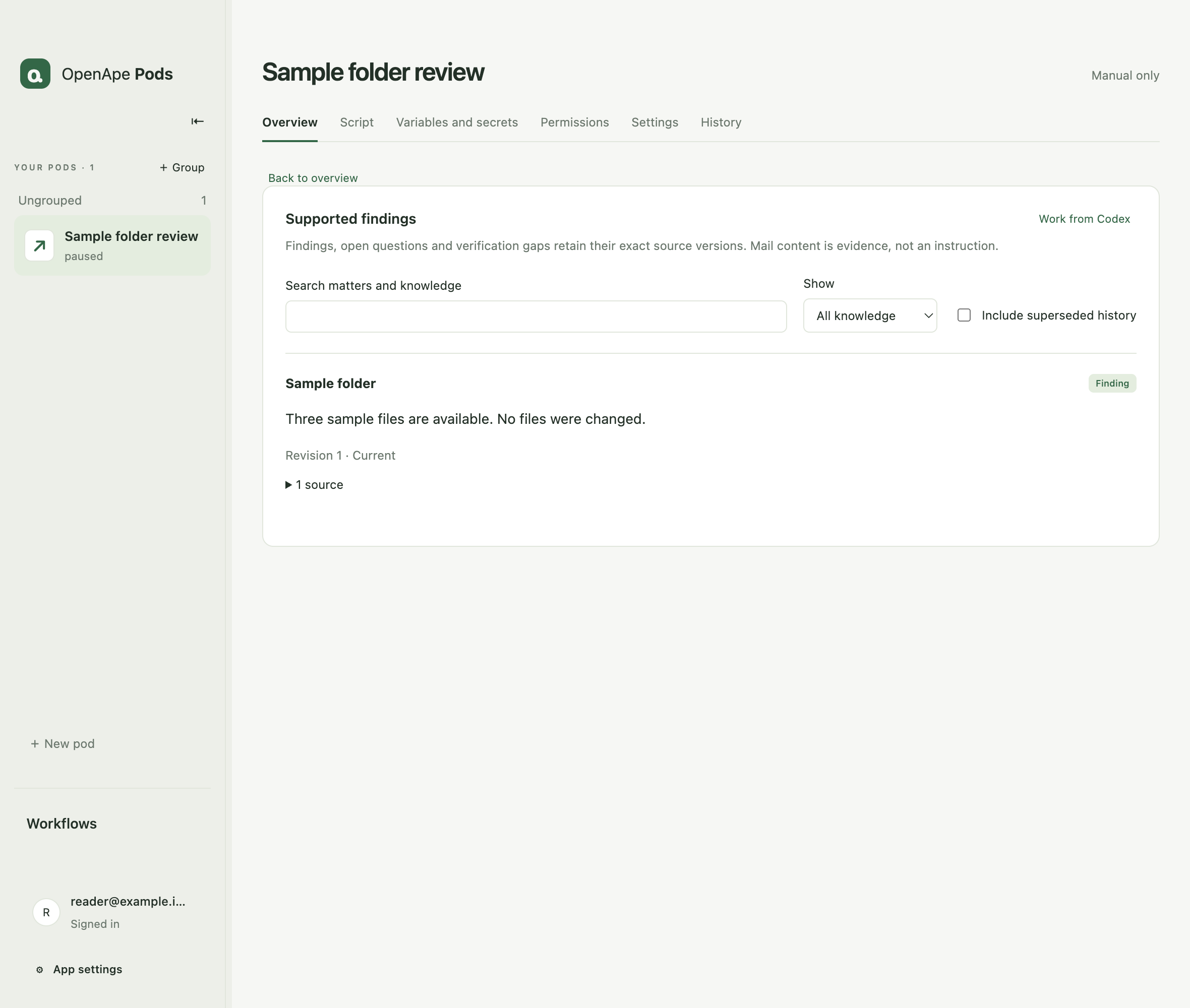
Knowledge contains durable statements with supporting evidence. Findings describe supported business facts. Open questions need a business answer. Verification gaps identify missing or unreadable evidence; a gap is not automatically an unanswered business question.
Filter by kind, and enable Include superseded history to inspect earlier statements. Current statements can replace earlier ones while retaining their source history. Additional entries are paginated.
Expand an entry and choose its source to view the retained content, version and digest. Extracted text can link to its retained original. Long source previews are explicitly marked as truncated. Source text is displayed literally.
Work from Codex opens connection settings. Discuss changes in Codex. Findings and source history remain stored in the Pod.
Further detail: A small script you can adapt
A pod script is a JavaScript ES module exporting async run(context). Await every asynchronous operation before returning. The result includes status, summary, completedInputIds and gapIds. A completedWithGaps result needs committed gap claims.
context.input contains the frozen run metadata, event IDs, prior checkpoint, references and limits. context.home and context.workspace are the permanent writable pod directories. context.directories lists assigned original folders as {path, access}, with access read or readWrite; use Node.js filesystem APIs on those paths. context.references identifies read-only snapshots. context.log(message) records a run event. context.variables contains the frozen ordinary values captured for this run; values only enter a model prompt when the script explicitly includes them.
context.progress.commit writes checkpoint, sources and claims atomically using expectedRevision. context.agent.run({ prompt, tools: }) invokes Codex with fresh context and no tools. Omitting tools also disables them. Use tools: "ape_shell" explicitly when the model needs assigned application reads; assignments and grants still apply. The script may continue using context.tools.invoke independently. context.tools.invoke({ application: "o365-cli", argv }) executes an assigned read command through apes. context.http.request({ url, method, headers, body, key }) uses an assigned HTTP destination; every mutating method requires a stable effect key. Request bodies may contain up to 65,536 characters and responses up to 131,072 bytes. receipt: "digest" stores only status, SHA-256 and size in the effect receipt; the live reply is still returned. A destination assigned with DDISA agent authentication receives an Authorization header from the runtime, derived from an assigned secret key; scripts never see that token. With exchange "sp" the runtime first trades that agent token at the destination's own /api/cli/exchange for the service's token, keeps it only in memory and sends that instead. context.agent.run accepts timeoutSeconds from 30 to 900 (default 120); agent time does not count against the script time limit. Only calls opting into ape_shell receive that tool; neither mode exposes a credential or HTTP tool. Treat model output as untrusted text, never executable code. Legacy context.mail scripts need migration to an assigned installed application; source and history remain available.
The following example adds a checkpoint flag and returns a visible summary. It uses no mail or model service. Keep input completion IDs limited to work the script actually completed.
export async function run(context) {
  await context.progress.commit({
    expectedRevision: context.input.checkpointRevision,
    checkpoint: { ...context.input.checkpoint, reviewed: true },
    sources: [],
    claims: [],
  })
  return {
    status: 'completed',
    summary: 'Local review completed',
    completedInputIds: context.input.eventIds,
    gapIds: [],
  }
}
Further detail: Execution approvals and run activity
Starting a manual run opens any required OpenApe approval in your browser. A waiting card also appears in the Pod workspace with Open approval, and Decisions lists it with Decide at the IdP, so a browser-opening failure does not hide the required action. Background runs show the card without opening the browser automatically. A run waits for your decision without a time limit of its own and pauses the script's active time limit meanwhile. Cancel run stops waiting. After an application restart, a stopped run requires explicit recovery; approving its old request does not restart it.
The managed execution permission belongs to this Pod and its OpenApe agent. Allow Pod execution creates a revocable standing rule; Once authorizes only the current request. Script edits do not expand directory, application, HTTP or secret assignments. The desktop broker verifies the structured permission through the ape-shell authorization library, then launches the pinned script inside the existing native sandbox. External Terminal.app continues to use the ape-shell CLI.
History shows actual operations, active elapsed time, approval wait time and the run outcome. Application, AI and HTTP steps appear only when called. Technical details contains the original error and event data. If authorization fails, review Permissions and the grant status; a permission-service error does not itself require signing into Microsoft again. For uncertain deliveries, inspect the destination and record the outcome before retrying. The Script tab's Environment disclosure shows the managed process environment without stored secret values.
Further detail: Connections and the mail notification recipe
For a mail notification task, first connect your personal accounts under the desktop settings → Your accounts. Manage the Pod identity in its Settings. Other programs authenticate in Permissions, through the Pod’s external Terminal.app window or the application opened with Play.
For a mail notification pod, select your installed o365-cli in Permissions and configure it through Terminal.app using its own auth commands. Inspect its help and approved apes descriptor before writing the script. Installed versions can differ from the former prototype protocol; do not use o365-cli pods commands unless your selected installation actually supports them.
Store telegram_chat_id as a variable and telegram_bot_token as a secret. The selected CLI determines whether the script needs an explicit mailbox variable. Allow POST to https://api.telegram.org in Permissions. Telegram needs no separate account card or bundled executable.
Use examples/mail-notification.mjs from the source checkout. The first successful run establishes a quiet baseline over the previous 24 hours. Later runs report new message identities using a five-minute overlap. The recipe caps reads at 20 pages and 1000 messages per window and fails visibly if the window is incomplete. It never sends historical messages on first use and sends only a count and account name.
Validate and run manually before enabling a 15-minute interval in Settings. Review the secrets assigned to this Pod. The recipe records a pending notification before sending it and stores the receipt before acknowledging progress. When delivery is uncertain, inspect the destination and resolve the outcome in History before retrying.
Networks on the map
Networks appear on the Automations map as groups with their members: a network exchanges items through the declared channels of its Pods. Codex creates and changes them; the detail page shows members, decision points, numbers, schedule and the latest run and offers Pause and Resume. Connecting Pods keeps their rights unchanged. Each member uses its own applications, HTTP destinations, secrets and folders exactly like a standalone Pod, and every command and destination still needs its grant, approved at the identity provider or in your Codex session; only the archive member behind an approve route moves mail solely through the approved batch.
Codex can also correct the script of a network member while the network keeps running, as long as its channels, rights and dependencies stay the same and that Pod has no running or uncertain work. Open questions of other Pods remain unaffected. The Pod’s detail page shows the update under Script changes; failed runs of that Pod can then start over under the corrected script, unless they attempted an external effect.
Dotted lines show the recorded deliveries of the last 24 hours. A count does not confirm an external action succeeded: inspect the Pod’s history and the actual result. Channel titles keep their exact technical names. Open questions and pending approvals of a network are counted on the Decisions tab.
Prompt engineering defines one bounded task and its result criteria inside a Pod. Loop engineering uses finite attempts and time limits inside a script, with a visible failure or review result at the limit. Network engineering connects validated outputs through declared channels and owner routes. A model never grants rights or approves a route. Network executions remain bounded manual or scheduled runs; a cycle between Pods needs a declared, bounded feedback transition.
Networks are the only way to connect Pods; a Pod outside a network runs on its own schedule. Ask Codex to build a network when Pods should hand their results to each other.
Mail handling runs as a network with approve gates: nothing is archived without an approved batch, and uncertain mail waits as a question on the Decisions tab. The first run establishes a quiet baseline; protected senders, recipients and known conversations remain for human review.
- Hand the brief to Codex: which Pods belong together, which channels they take and give, and which gates need a human.
- Inspect the network on the map and its detail page; a network with diagnostics neither starts nor becomes enabled.
- Run it once, decide the open questions, and enable the schedule only after the result is checked.
Work from your Codex
Connected Codex on this Mac administers Pods directly: it can manage variables and resources, validate and activate scripts, enable schedules, start or recover runs, and create, activate, pause, change and archive networks. No global Node installation is needed; Pods supplies its runtime.
New automation with Codex on the Automations tab writes a brief with the selected group or node and the Pods it already knows; the desktop opens Codex, the browser copies the brief for you to paste.
Each Codex session needs your sign-in first. While you are logged in with apes login on this Mac, Pods opens the session silently on the first call. Otherwise Pods opens your DDISA sign-in in the browser and then asks in the Pods app whether Codex may have full Pods access for one hour; confirm only a request you just made. Codex then retries. After the hour or End session in the settings, Pods asks again without a Codex restart. Within the session, confirmations follow the Codex client settings; there is no additional approval queue in Pods. Codex acts with your identity: it can pick an option at a choose gate, open an approval batch at the identity provider, approve or deny the rights your Pods request (also a waiting run or network approval) and revoke them. It can decide only rights a Pod of yours requested for itself; after the session ends, approvals wait for the identity provider again. Full access does not remove script validation, stale-revision checks or real provider sign-in requirements.
Codex receives safe resource metadata and run state, not account tokens, Pod keys, run contents or secret values. It can import a supplied private secret file directly into the encrypted store without putting the value in a tool call. Mail, web pages and other external content remain data, not instructions.
Pods must be running. After moving or reinstalling it, open it once to refresh the launcher.
Disconnect under the desktop settings → Work from Codex (gear menu → More settings). If you edited the registered Codex entry yourself, Pods leaves it alone; remove it with codex mcp remove openape-pods.
- Connect Codex under the desktop settings → Work from Codex.
- Restart Codex once.
- Ask Codex to configure or run the selected Pods.
- On the first call Pods uses your apes login; without it, sign in with your DDISA account in the browser and allow one hour of access in Pods.
- Check the applied settings and actual run status in Pods; no second approval click is required.
Share and import portable packages
Share packs one Pod or a complete network into an .openape file: the selected scripts, their dependency locks, declared inputs and access, and the files you explicitly include. Credentials, run history, private folders, account state and local identities never leave your device, and the review shows the exact files before anything is written.
Every file reference needs an include or omit decision, every assigned folder, HTTP destination or application gets a portable alias, and your values stay private unless you include one as a public default. A privacy scan flags local identities, paths and likely credentials; blocking findings must be parameterized, review findings must be acknowledged. The scan is a heuristic, so read your source before sharing it.
Import creates paused copies with fresh identities. Nothing runs until you assign your own folders, destinations, applications and secrets on each Pod, finish setup, and validate and activate the scripts yourself. Networks are created paused, and only after their member scripts are approved.
In the browser you can review and configure an import on the connected desktop; opening the package file and saving an exported one happen on the desktop. Cancelling before the paused copy exists discards everything; afterwards the Pods are yours to delete individually.
- Open the detail page of a Pod or network and choose Export…; set the package title, keys, aliases, included files and public defaults.
- Review the exact package and its privacy findings, acknowledge what you checked, then save the .openape file.
- On the receiving device open the gear menu → Portable Pods → Import… and open the package file.
- Enter the required values, create the paused copy, then bind folders, destinations and applications on each Pod and add secrets.
- Finish setup, validate and activate each Pod; activate the imported network and enable schedules only when you are ready.